

First things first – What to do when you get a new phone
by Christine David
Did Santa bring you a new smart phone for Christmas? Or maybe you treated yourself to a new handset while everyone else was in queue for the January sales?
Now that you have your shiny new toy – I mean, phone – you need to work your way through the initial setup and login process so you can then start using it in earnest. Some of the default settings on your handset might not be exactly what you want, so adjusting them to your liking from the get-go will give you a much better experience with your phone. Here are our tips:
The unboxing
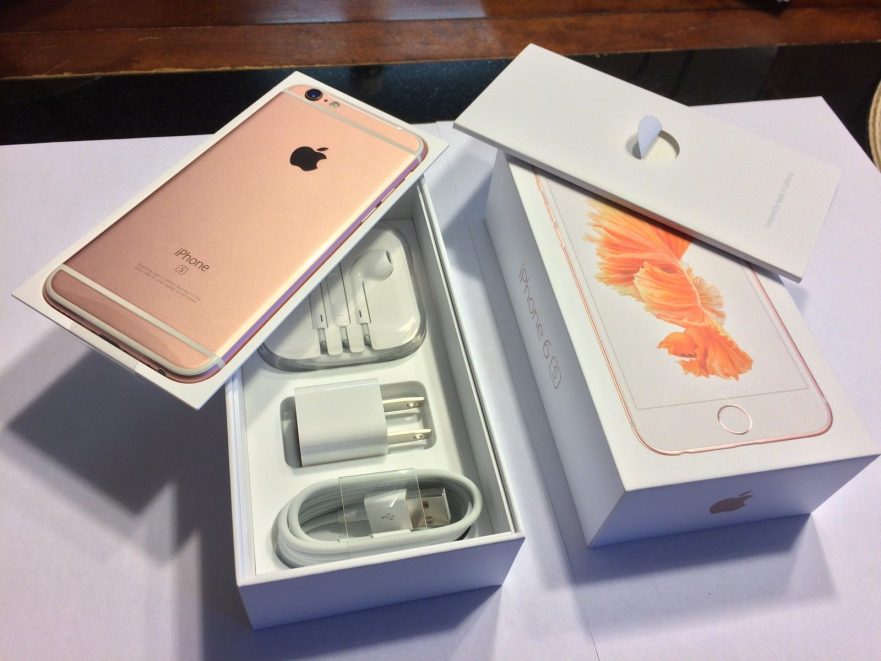
When you first open the box and remove your phone, check inside to make sure you notice things like cables, charging blocks and earbuds. Also make sure you remove all the plastic film and various protective doo-dads in the packaging that are there to keeps things looking new until you get it.
Make sure the battery is charged. This is a good time to check that the aforementioned supplied cables or power adapters work and you’ve got the juice you need to get things set up.
Connect to Wi-Fi
There’s a good chance you’ll be doing quite a bit of downloading to get your new phone set up and ready to roll, so make sure you connect to your home Wi-Fi network. Getting this right the first time means that your phone should then automatically connect every time you return home.
Check for updates
Depending on what phone you buy and how long it’s been between its manufacture and sale, there’s a good chance that the device will need a day-one operating system (OS) update. It’s a good idea to download and install the latest and greatest OS now, before you sign in and update apps and install new ones.
This is an easy check from the Settings menu, so it’s worth looking just to get the update out of the way, especially if it means restarting your phone.
Even if you don’t have an OS update, it’s worth checking for individual App refreshes for essential and preloaded programs. If there are more than a few of these, the updates could take some time, so get this out of the way early as you’ll then have a smoother run into getting the optimal set up for your needs.
This is also the time to delete the preloaded apps that you don’t need that are cluttering up your screen. If you’re never going to open a spreadsheet or compose a song, delete the manufacturer’s included apps or at least move them to one of the back home page screens.
Set up your handset security
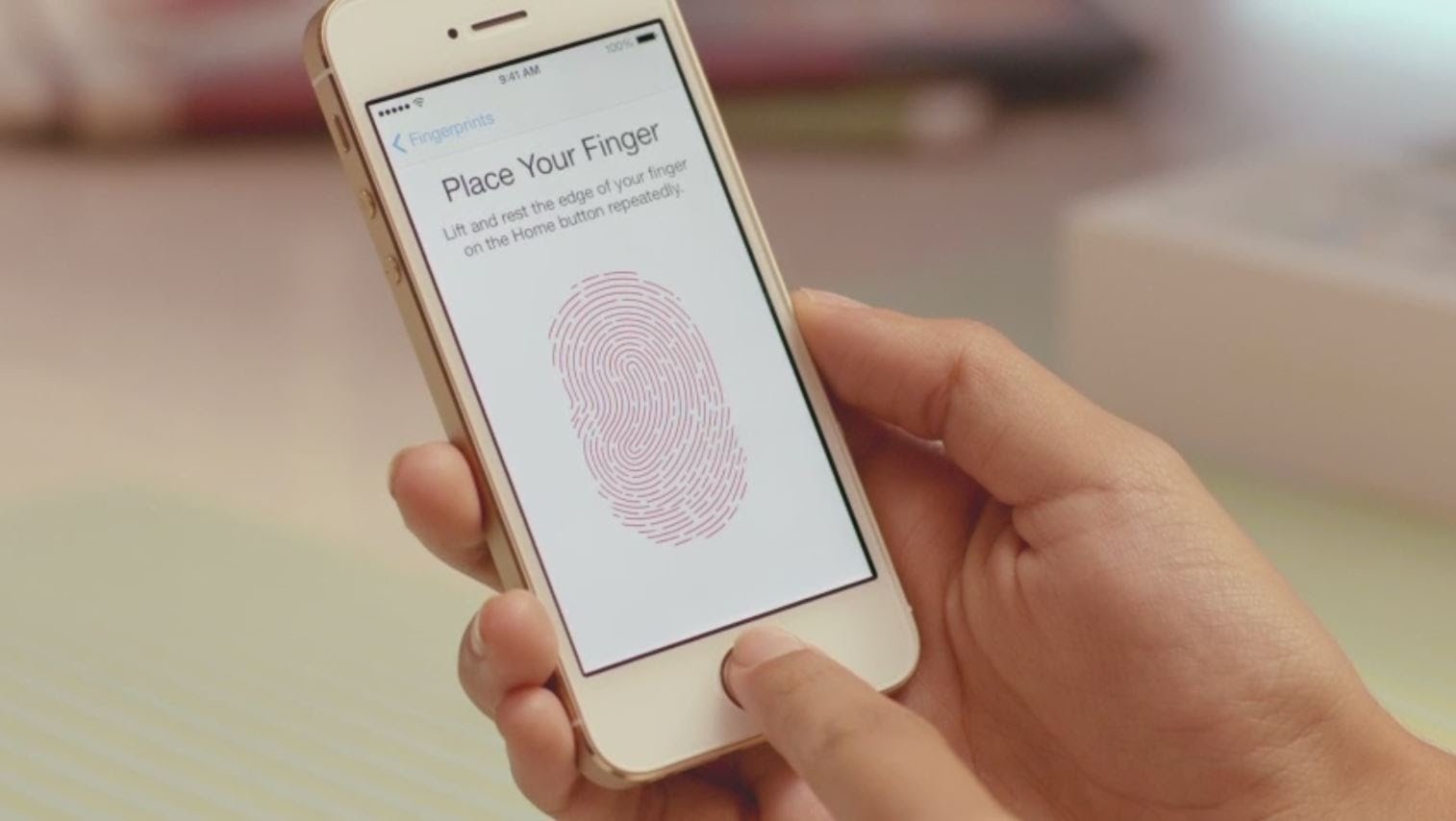
Whatever kind of lock screen protection your phone offers – Face ID, fingerprint scanning, and so on – make sure it’s correctly set up and working before you leave the house. It’s an essential barrier between anyone who might pick up your phone and all of your email, banking, photos and social media accounts.
Don’t worry if you’re using a phone that doesn’t have any kind of fancy lock screen mechanism, because a traditional PIN code is just as secure as anything else. On Android, head to Security & location then Screen lock from Settings; on iOS, you need to open Settings then tap Touch ID & Passcode or Face ID & Passcode.
While you’re focussed on security, it’s a good idea to set the screen timeout time so that your phone gets locked when it detects that you’re not doing anything with it (if you’re watching a movie or other video, this setting gets disabled, so your viewing isn’t interrupted).
On Android, choose Display, then Advanced, then Sleep in Settings to set the delay. On iOS, it’s under Display & Brightness and Auto-Lock in Settings. While you’re in those menus, you might want to also lower the screen brightness from the default, as this will extend your battery life.
It’s important to know what your security options are and enable them. In the panic-inducing event that you misplace your phone or lose it to theft, a basic understanding of the measures you set up and how to remotely lock, track, and even wipe your phone will pay off more than you can imagine. This also goes for recovering your assets, like contacts and precious photos.
Get cloud storage up and running
Your phone may alert you that you have the option of turning on cloud storage or syncing functionality for your contacts, calendar, photos, music, and so on. As with updates and security, this is one of those things you should take care of sooner rather than later.
Not only are you making it smoother to share your assets among devices like your tablet and laptop, but you’re also taking a step toward safeguarding your digital property if you lose your phone and making it easier to repopulate a future device with your photos and other personal data.
Personalise your settings
You’ll want to tweak things like screen brightness, volume profile, ringtones and wall papers to make them more to your liking. You’ll find all that and more in the settings, so take your time and go through them all.
The benefit of playing around with these multitude of options is that you’ll learn a lot about the workings of your handset from the experience. Phone-makers often slip controls for some interesting software extras in the settings menu, so use this as a time of discovery about your handset’s features.
Change how your phone can track you
You might be perfectly happy having your phone track your movements, so it can recommend new places based on where you’ve already been, or so you can share your location with your friends when you’re all trying to rendezvous.
If that’s not really ok with you – or you just want to familiarise yourself with your phone’s privacy option – head to Security & location then Location in Android Settings or Privacy and Location Services in iOS Settings.
You can switch location tracking off altogether and live with the consequences (like no turn-by-turn directions in the car), or disable the tracking on an app-by-app basis. As you add more apps to your new phone, they will have to specifically request permission to use your phone’s location for any purpose.
Voice commands
Your Android or iOS phone is going to come with a digital assistant app built in, but it won’t necessarily be configured to answer your every call when you first start using it. If you want to be able to shout “hey Siri” or “OK Google” even when your phone is locked, you need to make sure this is enabled in the settings.
On phones powered by Google’s OS, you actually need to open up the Google app, then tap the Menu button (three horizontal lines), then pick Voice and ‘OK Google’ detection (if the option doesn’t appear, it’s not available on your phone). On iPhones, open Settings, tap Siri & Search, and toggle the Listen for “Hey Siri” switch to On.
Make sure you can find (and restore) your phone
Losing your phone is a traumatic experience. If it gets stolen, you’ll want to have a way of wiping it from your laptop. To get this set up, go to Security & location and Find My Device in Android Settings, or tap on your Apple ID name, then your iPhone, then enable Find My iPhone in iOS Settings.
The tools by both Google and Apple work in very similar ways. You can track your device’s location on a map in a web browser, get the phone to ring (in case it’s lost behind the sofa), and lock or wipe it remotely if it’s been stolen or is lost forever.
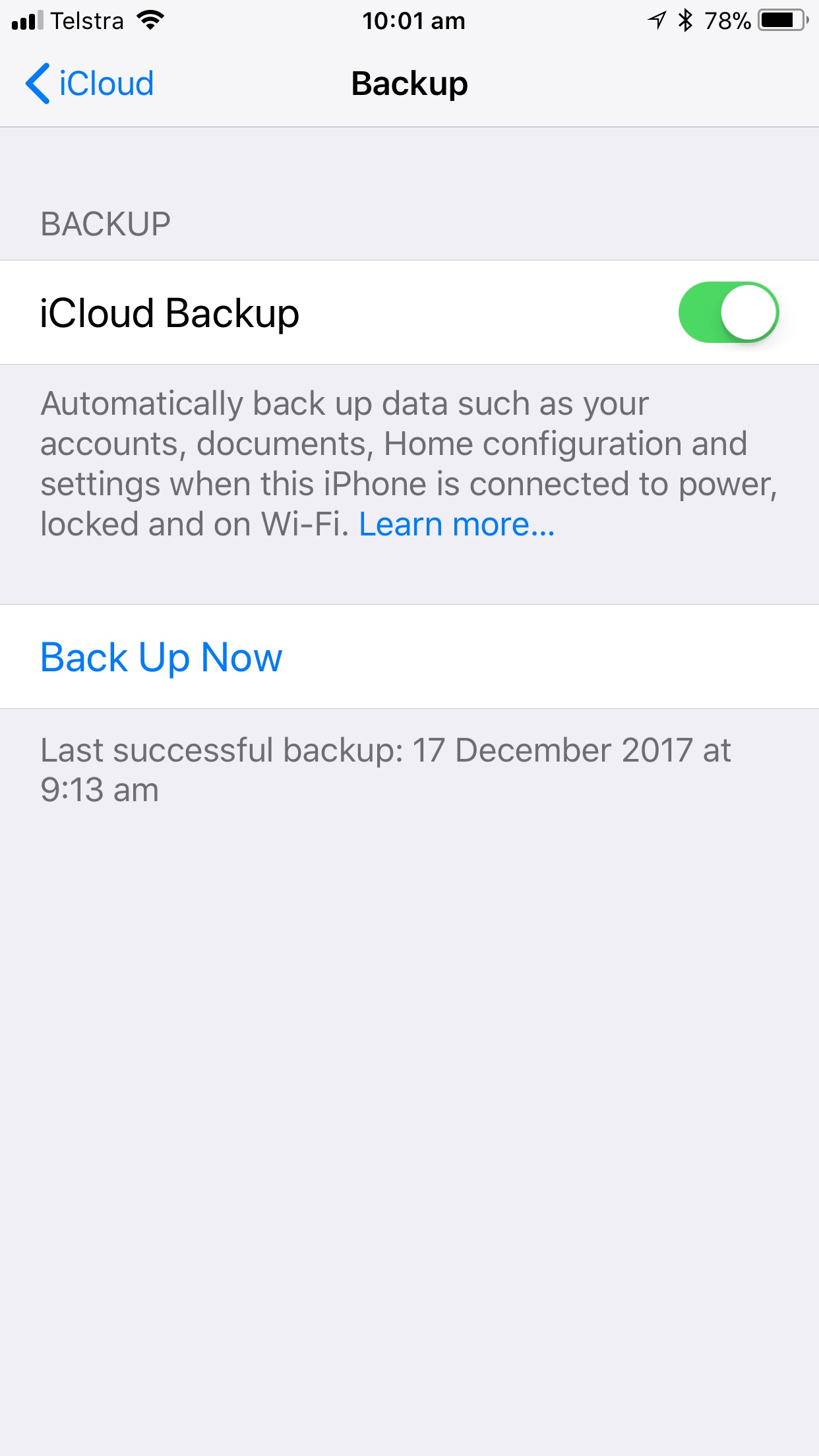
If you do have to wipe your device, you’re going to want to have a backup available, and again this is something you should take care of as soon as you’ve got your device up and running. In Android Settings, head to System then Backup, and in iOS Settings, tap your Apple ID, then tap your device’s name, then pick your backup option to keep a copy of your data in iCloud.
The end is in sight
Now there’s just a few more things to consider. With a new phone, you’ll have to sign in again to any third party apps you use regularly like Facebook or What’s App, so be sure you have all the passwords for those accounts at hand.
Many of these newly loaded applications, both from the manufacturer and 3rd parties, will have “What’s New” videos or step-by-step explanations. Take the time to peruse these tutorials – you’ll be surprised the short cuts, tips, and new functionalities you will learn about, even from applications that you’re well familiar with.
Be sure to protect your phone from damage with a sturdy case. If you’ve ever dropped a phone and had the screen crack, you’ll know how important a case can be. Sure, your style preference in choosing a case is important, but do try to look for one that also actively shields the phone’s vulnerable screen and corners as well.
And finally, you won’t be thinking about it now, but do save the original box and packaging that comes with your new phone. Down the track you may want to sell it and presenting it with the original accoutrements can net you a higher sale price.
Christine David has worked in the computer industry for over 35 years installing, implementing, training and supporting accounting software so has a wealth of knowledge and experience helping people to learn and use their systems effectively. For more information on the ways they help seniors gain confidence with technology, see the website on it4retirees.com.au. Phone 0401-017-459 or email chris@it4retirees.com.au